Homelab
Guides/manuals for administrative tasks
- DevOps
- NixOS
- PiKVM
- Proxmox
- /etc/network/interfaces
- Fix Intel Ethernet NIC Hang
- Import a qcow2 file
- Rename a node
- Setting User Admin Role
- Terraform Setup
- User Provisioning
- SELinux
- Services
- Authentik
- CUPS
- Docker Healthchecks
- docker-socket-proxy
- How to upgrade MariaDB inside Docker
- Samba/SMB
- searx-ng
- Syncthing
- Troubleshooting
- System
DevOps
Bitwarden Secrets Manager on macOS
Run this command:
curl https://bws.bitwarden.com/install > bws.shReview the downloaded script to make sure that it is safe to use
Comin Hard Reset
Do not use git push --force on main, otherwise comin will not be able to recognize changes until it is reset
# rm -rf /var/lib/comin
# systemctl restart comin
# cd /var/lib/comin/repository
# comin fetch
NixOS
/nix/store
List top storage users of files in the nix store
nix path-info -rS /run/current-system | sort -nk2 | tail -20 | numfmt --field=2 --to=iec --suffix=Bhome-manager setup
nix run home-manager -- switch --flake '.#<config>'Provisioning a new nixOS Host
nix run nixos-anywhere -- --flake '.#<host>' --generate-hardware-config nixos-generate-config ./hosts/<host>/hardware-configuration.nix nixos@<ip>Sops-Nix Env Files
- Create the plaintext env file to be used
Do not commit any plaintext env files into version control
- Run the command to encrypt the file:
sops --input-type binary --output-type binary -e [file] - To edit the file, run the following code:
sops --input-type binary --output-type binary [file]
Sops-Nix Setup
To set up the system to run sops-nix, I usually use the host SSH key like so:
nix run 'nixpkgs#ssh-to-age' -- -private-key -i /etc/ssh/ssh_host_ed25519_key Copy the generated private key to /var/lib/sops/age/keys.txt . This is the location set in the sopsFile option in base/secrets.nix.
No need to change from root permissions.
Afterwards, generate the public key from the private key and then copy and paste this into the .sops.yaml config file on the nix config:
nix shell 'nixpkgs#age' -c age-keygen -y /var/lib/sops/age/keys.txt Don't forget to run a sops updatekeys command if you are performing these steps after the secrets file has been created
PiKVM
/boot/config.txt
[pi4]
Used to fix kvmd-otg and kvmd-tc358743 not starting at boot
dtoverlay=tc358743
dtoverlay=disable-bt
dtoverlay=dwc2,dr_mode=peripheralTailscale Auto Cert Update Service
These systemd services allow me to update the Tailscale certificates for PiKVM every 80 days without manual intervention.
cert-update.timer
[Unit]
Description=Update tailscale certificates for nginx

[Timer]
OnBootSec=1min
OnUnitActiveSec=80d
AccuracySec=1h
Persistent=true

[Install]
WantedBy=timers.target
tailscale-cert-update.service
[Unit]
Description=Update tailscale certificates for nginx
After=network-online.target tailscaled.service

[Service]
Type=oneshot

# Service isolation
ProtectHome=true
ReadWritePaths=/etc/kvmd/nginx/ssl
PrivateNetwork=false
ProtectClock=true
ProtectHostname=true
ProtectKernelTunables=true
ProtectKernelModules=true
ProtectControlGroups=true
LockPersonality=true

# Execution steps
ExecStartPre=/usr/bin/curl --silent --max-time 10 --retry 5 https://hc.its-et.me/ping/PlGPBqq-0rLI4N4ya3jYmg/pve-01k-certificate-update/start
ExecStartPre=/usr/bin/rw
ExecStart=tailscale cert --cert-file=/etc/kvmd/nginx/ssl/server.crt --key-file=/etc/kvmd/nginx/ssl/server.key pve-01k.tail755c5.ts.net
ExecStartPost=/usr/bin/curl --silent --max-time 10 --retry 5 https://hc.its-et.me/ping/PlGPBqq-0rLI4N4ya3jYmg/pve-01k-certificate-update
ExecStartPost=/usr/bin/systemctl restart kvmd-nginx.service
ExecStartPost=/usr/bin/ro

[Install]
WantedBy=default.target
Don't use PrivateDevices= in [Service], this disallows /usr/bin/ro and /usr/bin/rw from executing properly
Proxmox
/etc/network/interfaces
# network interface settings; autogenerated
# Please do NOT modify this file directly, unless you know what
# you're doing.
#
# If you want to manage parts of the network configuration manually,
# please utilize the 'source' or 'source-directory' directives to do
# so.
# PVE will preserve these directives, but will NOT read its network
# configuration from sourced files, so do not attempt to move any of
# the PVE managed interfaces into external files!

auto lo
iface lo inet loopback

auto <eth-interface>
iface <eth-interface> inet manual

auto vmbr0
iface vmbr0 inet manual
        bridge-ports <eth-interface>
        bridge-stp off
        bridge-fd 0
        bridge-vlan-aware yes
        bridge-vids 2-4094
        post-up   ethtool -K <eth-interface> gso off gro off tso off tx off rx off
        post-up   echo 1 > /proc/sys/net/ipv4/ip_forward
        post-up   iptables -t raw -I PREROUTING -i fwbr+ -j CT --zone 1
        post-down iptables -t raw -D PREROUTING -i fwbr+ -j CT --zone 1

auto vmbr0.2
iface vmbr0.2 inet manual
#VLAN 2 Servers

auto vmbr0.3
iface vmbr0.3 inet manual
#VLAN 3 IoT

auto vmbr0.4
iface vmbr0.4 inet manual
#VLAN 4 DMZ

auto vmbr0.100
iface vmbr0.100 inet static
        address <pve-host-ip>/24
        gateway <management-network-gateway>
# VLAN 100 Management

source /etc/network/interfaces.d/*Fix Intel Ethernet NIC Hang
Problem
If ethernet hangs and you get this journal log:
Mar 29 05:14:04 pve-01 kernel: e1000e 0000:00:1f.6 enp0s31f6: Detected Hardware Unit Hang:
                                 TDH                  <3>
                                 TDT                  <75>
                                 next_to_use          <75>
                                 next_to_clean        <2>
                               buffer_info[next_to_clean]:
                                 time_stamp           <1525c7e78>
                                 next_to_watch        <3>
                                 jiffies              <15287e140>
                                 next_to_watch.status <0>
                               MAC Status             <40080083>
                               PHY Status             <796d>
                               PHY 1000BASE-T Status  <3800>
                               PHY Extended Status    <3000>
                               PCI Status             <10>
Symptoms: unable to connect to internet, node becomes remotely inaccessible
Solution
Edit /etc/network/interfaces with the following:
iface vmbr0 inet static
        ...
        post-up ethtool -K <ethernet device> gso off gro off tso off tx off rx off
        ...

source /etc/network/interfaces.d/*
Make sure the ethtool package is installed on the system
Sources:
https://forum.proxmox.com/threads/intel-nic-e1000e-hardware-unit-hang.106001/
https://www.reddit.com/r/Proxmox/comments/1drs89s/intel_nic_e1000e_hardware_unit_hang/
Import a qcow2 file
qm importdisk <vm_id> file.qcow2 <storage-backend>
Rename a node
#!/usr/bin/bash

mkdir -p /tmp/qemu ## make temp dir for moving VM config files
cp /etc/pve/nodes/$original_hostname/qemu-server/* /tmp/qemu/

hostnamectl set-hostname "$new_hostname"
sed -i "s/$original_hostname/$new_hostname/g" /etc/hosts

services=("pveproxy.service" "pvebanner.service" "pve-cluster.service" "pvestatd.service" "pvedaemon.service")
for service in "${services[@]}"
do
systemctl restart "$service"
done

rm -rf "/etc/pve/nodes/$original_hostname"
cp /tmp/qemu/* /etc/pve/nodes/$new_hostname/qemu-server/
rm /tmp/qemu/*
Copy the contents of /var/lib/rrdcached/db/pve2-{node,storage}/old-hostname to /var/lib/rrdcached/db/pve2-{node,storage}/new-hostname and remove the old directory.
Setting User Admin Role
# See existing roles
pveum role list

# Give your user Sys.Modify on the node (grants network editing, among other things)
pveum acl modify /nodes/<nodename> -user etorres@pam -role Administrator
Terraform Setup
Creating the Terraform role in PVE
# pveum user add terraform@pve

# pveum role add Terraform -privs "Realm.AllocateUser, VM.PowerMgmt, VM.GuestAgent.Unrestricted, Sys.Console, Sys.Audit,   Sys.AccessNetwork, VM.Config.Cloudinit, VM.Replicate, Pool.Allocate, SDN.Audit, Realm.Allocate, SDN.Use, Mapping.Modify, VM.Config.Memory, VM.GuestAgent.FileSystemMgmt, VM.Allocate, SDN.Allocate, VM.Console, VM.Clone, VM.Backup, Datastore.AllocateTemplate, VM.Snapshot, VM.Config.Network, Sys.Incoming, Sys.Modify, VM.Snapshot.Rollback, VM.Config.Disk, Datastore.Allocate, VM.Config.CPU, VM.Config.CDROM, Group.Allocate, Datastore.Audit, VM.Migrate, VM.GuestAgent.FileWrite, Mapping.Use, Datastore.AllocateSpace, Sys.Syslog, VM.Config.Options, Pool.Audit, User.Modify, VM.Config.HWType, VM.Audit, Sys.PowerMgmt, VM.GuestAgent.Audit, Mapping.Audit, VM.GuestAgent.FileRead, Permissions.Modify"

# pveum aclmod / -user terraform@pve -role Terraform

# pveum user token add terraform@pve <TokenName> --privsep=0
provider "proxmox" {
endpoint = var.virtual_environment_endpoint
api_token = "terraform@pve!<TokenName>=xxxxxxxx-xxxx-xxxx-xxxx-xxxxxxxxxxxx"
insecure = true
#ssh {
# agent = true
# username = "terraform"
#}
}
User Provisioning
Perform these following steps:
pveum useradd etorres@pam
pveum group add wheel -comment 'System admins'
pveum acl modify / -group wheel -role Administrator
pveum acl modify / -group wheel -role PVEAdmin
pveum acl modify / -group wheel -role PVEVMAdmin
pveum group modify wheel -privs Sys.PowerMgmt VM.PowerMgmt Permissions.M
pveum usermod etorres@pam -group wheel
SELinux
Guides and reference for my SELinux configurations
Policy - systemd-resolved
Services
Guides and documentation for miscellaneous services that don't categorize under system.
Authentik
CUPS
Firewall rules:

Docker Healthchecks
Rationale
Use these to verify the health of database containers. This allows me to only run web services when a database is healthy. This prevents us from hiding a silent failure.
MariaDB
healthcheck:
  test: ["CMD", "healthcheck.sh", "--connect", "--innodb_initialized"]
  start_period: 10s
  interval: 10s
  timeout: 5s
  retries: 3
MySQL
healthcheck:
  test: ["CMD", "mysqladmin" ,"ping", "-h", "localhost"]
  timeout: 20s
  retries: 10
Postgres
healthcheck:
  test: ["CMD", "pg_isready", "-U", "<user>"]
  interval: 30s
  timeout: 20s
  retries: 3
Web Services
healthcheck:
  test: ["CMD-SHELL", "curl -f http://localhost:3000/api/healthz | grep pass"]
  interval: 1m
  timeout: 2m
  retries: 5
If the service has an HTTP endpoint and has the curl binary, use the above to create a healthcheck.
Use CMD-SHELL as the first token to be able to pipe output from curl to grep
Valkey
healthcheck:
  test: ["CMD-SHELL", "valkey-cli ping | grep PONG"]
  start_period: 20s
  interval: 30s
  retries: 5
timeout: 3sdocker-socket-proxy
Use this service to expose the docker socket and protect it from unauthorized operations
Prevent
Required Permissions
authentik
- CONTAINERS
- IMAGES
uptime-kuma
traefik
How to upgrade MariaDB inside Docker
docker compose exec -it db bash -c "mariadb-upgrade -u root -p"
Then enter password
Samba/SMB
Configuration
My user is set up in unix groups that correspond to the groups outlined in the following config sections and added in the groups paperless and timemachine.
Paperless-ngx Consumer Share
[paperlessngx-consumer]
comment = Paperless-ngx Consumption Directory
path = /path/to/consumer/directory
# Make this share accessible to all users in the paperless group
valid users = @paperless
write list = @paperless
public = no
writable = yes
printable = no
Time Machine Share
[krypton-timemachine]
comment = Time machine backup share
path = /path/to/time/machine/backups
# Make this share accessible to all users in the timemachine group
valid users = @timemachine
write list = @timemachine
public = no
writable = yes
printable = nosearx-ng
HTTP method: use GET to be able to use the back button on websites
Syncthing
Troubleshooting
Django
CSRF verification failed: null does not match any trusted origins
If a django-backed service is sitting behind a reverse proxy, ensure that for referrer policy header, it is passing 'same-origin'.
For example, in traefik's file provider:
headers-middleware:
  headers:
    referrerPolicy: same-origin
System
How to administer core system services such as networking, storage, monitoring, etc.
audit
Kernel Parameters:
audit=1 audit_backlog_limit=8192This prevents the message
kauditd: hold queue overflow
crypttab
This configuration allows us to automatically unlock but not mount external drives. For example:
/etc/crypttab
diskn          UUID=<path to disk by /dev/disk/by-uuid>    /etc/keyfiles/<keyfile name>  luks,nofail
This configuration will use the keyfile /etc/keyfiles/keyfile to /dev/disk/by-uuid/id and create a device node for that disk at /dev/mapper/diskn for mounting in fstab.
Do not directly mount the disk
Docker Firewall Configuration
Source: Firewalld Strict Docker Filtering
Preparation
Required parts:
Install firewalld and activate service:
pacman -Syu firewalld
systemctl enable --now firewalld.service
Disable any other firewall services.
Disable iptables for docker by adding or changing /etc/docker/daemon.json by adding the following config options:
{
  "iptables": false
}
After changing this config file, restart the Docker daemon to apply the previous change:
systemctl restart docker.serviceAs a result of the previous steps, only allowed ports on firewalld are accessible from the outside. However containers are now unable to connect outbound to the internet.
firewalld Configuration
Allow internet access for Docker containers
We need to allow masquerading to allow traffic from the Docker zone to the internet:
# Running this command allows your containers to reach out to the internet
firewall-cmd --permanent --zone=home --add-masquerade
# Since we used the --permanent flag, we need to reload the firewall for the changes to take effect
firewall-cmd --reload
Docker creates a zone in firewalld specifically for its bridge network interfaces for each container network along with the docker0 interface.
To fix networking for containers that are not connected to a docker network, add your network interface connected to the network to the masqueraded zone.
FiOS Router
Set Router to Bridge Mode
Login to router administration interface
Select "My Network" on the top bar

Select "Network Connections" > "Advanced"

Select edit icon for "Network (Home/Office)", then click "Settings" on the bottom right
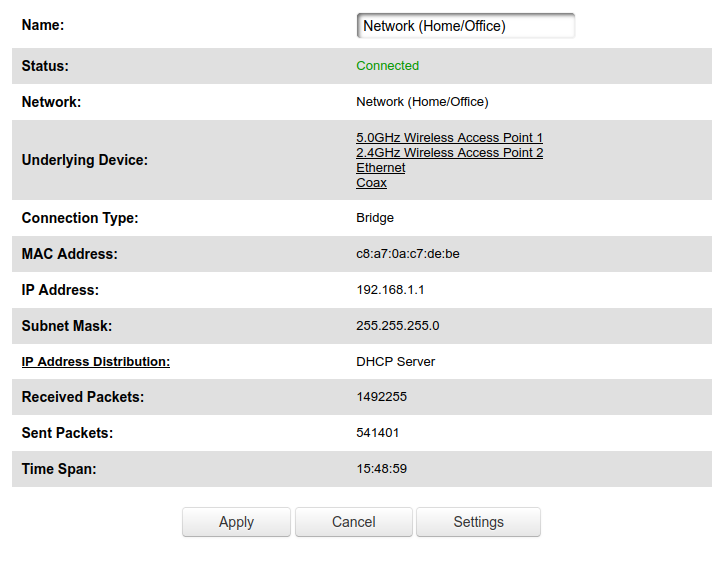
Check the box for bridge mode under the "Bridge" section
If you set up another router and it detects that the ISP modem/router is still active, it will use the 10.0.0.0/16 network rather than the 192.168.0.0/24 network
Configure IP Allocation
Login to router administration interface
Select "Advanced" on the top bar, then select "Yes"
Under "Routing", select "IP Address Distribution"

Select "Connection List" on the bottom

Edit a specific host's IP allocation
Grafana Alloy
How to get WAL stats for alloy:
alloy tools prometheus.remote_write wal-stats /var/lib/private/alloy/data-alloy/prometheus.remote_write.default/wal
Intel NIC Configuration
Wireless Configuration
# iwlwifi.conf
# Enable antenna aggregation
options iwlwifi 11n_disable=8
lm-sensors
| Label |
Value |
| CPUTIN |
Motherboard's CPU temp sensor |
| SYSTIN |
Motherboard temp sensor |
| AUXTIN |
Aux temp sensors, usually for PSU |
LUKS
https://wiki.archlinux.org/title/Dm-crypt/Specialties#Disable_workqueue_for_increased_solid_state_drive_(SSD)_performance
Podman
Accessing host ports from inside a container
virtualisation = {
  oci-containers.containers = {
    example-container = {
      image = "example-image";
      extraOptions = [ "--network=slirp4netns:allow_host_loopback=true" ];
      };
    };
  };
};
From the container's config, reference host.containers.internal:PORT
traefik
Docker Label Configuration
Base Labels
This is the minimum set of labels you need to expose a container to traefik:
labels:
	traefik.enable: true
	traefik.http.routers.<service_name>.entrypoints: <ep1>, <ep2>
	traefik.http.routers.<service_name>.rule: Host(`host1`, `host2`)
	traefik.http.routers.<service_name>.tls: true
	traefik.http.routers.<service_name>.tls.certresolver: <cert_resolver>
Middleware configuration
To configure a middleware for a particular service, add the following label:
traefik.http.routers.<service_name>.middlewares: middlware@providerAccessing on a non-default port
If a container exposes multiple ports or a non-default port:
traefik.http.services.<service_name>.loadbalancer.server.port: <port_num>Networking
To expose only containers on a certain network to traefik, you must specify the providers.docker.network option as so:
providers:
	docker:
    	endpoint:
        exposedByDefault: false # Require label in docker-compose file for each container
        network: <net_name>
        watch: true
If traefik itself is running in a docker container, you must place it on the same network as the containers you want to expose.
TLS
Basic TLS configuration that enables resolvers for both single-domain and wildcard Let's Encrypt certificates, as well as staging certificates:
# ========== TLS Configuration ==========
tls:
	# Disable TLS version 1.0 and 1.1
    options:
		default:
 			minVersion: VersionTLS12
 			sniStrict: true

	certificatesResolvers:
		staging:
			acme:
				email: "email@email.com"
				storage: /etc/traefik/certs/acme.json
				caServer: "https://acme-staging-v02.api.letsencrypt.org/directory"
				tlsChallenge: {}

		production:
			acme:
				email: "email@email.com"
				storage: /etc/traefik/certs/acme.json
				caServer: "https://acme-v02.api.letsencrypt.org/directory"
				tlsChallenge: {}
Wildcard certificates can only be obtained with the DNS-01 challenge. Therefore a resolver that uses these must have dnsChallenge configured accordingly.
Tailscale
When running traefik in a docker container, ensure that it has access to the tailscale socket to be able to issue TLS certificates through tailscale
Users/Groups
krypton
| User | Group | Type (login/system) | Purpose |
| restic | backup | system | Run the restic-rest-server |
| www-srv | www | system | Run web-accessible services |
| - | timemachine | ||
| traefik | traefik | system |
Run the t |
| syncthing |
|
||
| paperless |
|
||
| docker |
|
||
| users |
|
||
| wheel |
|
oxygen
Bookstack
502 on OIDC logout
Edit /config/nginx/site-confs/default.conf inside the container. On the host, it’s under whatever directory you mapped to /config, so something like ./bookstack/config/nginx/site-confs/default.conf.
Open it and find the PHP block, which in the linuxserver image looks like this:
location ~ \.php$ {
    fastcgi_split_path_info ^(.+\.php)(/.+)$;
    fastcgi_pass 127.0.0.1:9000;
    fastcgi_index index.php;
    include /etc/nginx/fastcgi_params;
}
Add the buffer directives inside it:
location ~ \.php$ {
    fastcgi_split_path_info ^(.+\.php)(/.+)$;
    fastcgi_pass 127.0.0.1:9000;
    fastcgi_index index.php;
    include /etc/nginx/fastcgi_params;

    fastcgi_buffer_size 32k;
    fastcgi_buffers 16 16k;
    fastcgi_busy_buffers_size 32k;
}
Then test and reload without restarting the container:
docker exec bookstack nginx -t && docker exec bookstack nginx -s reload(Replace bookstack with your container name.)
The linuxserver image only creates default.conf on first run and won’t overwrite it on updates, so your edit will persist. If a future image update introduces a new default, it saves it as default.conf.sample next to yours rather than replacing it.
If the error persists after this, check your .env (in /config/www/.env) for SESSION_DRIVER. If it’s set to cookie, switching it to file or database is the other big lever for shrinking headers.