System
How to administer core system services such as networking, storage, monitoring, etc.
- audit
- crypttab
- Docker Firewall Configuration
- FiOS Router
- Grafana Alloy
- Intel NIC Configuration
- lm-sensors
- LUKS
- Podman
- traefik
- Users/Groups
- Bookstack
audit
Kernel Parameters:
audit=1 audit_backlog_limit=8192This prevents the message
kauditd: hold queue overflow
crypttab
This configuration allows us to automatically unlock but not mount external drives. For example:
/etc/crypttab
diskn          UUID=<path to disk by /dev/disk/by-uuid>    /etc/keyfiles/<keyfile name>  luks,nofail
This configuration will use the keyfile /etc/keyfiles/keyfile to /dev/disk/by-uuid/id and create a device node for that disk at /dev/mapper/diskn for mounting in fstab.
Do not directly mount the disk
Docker Firewall Configuration
Source: Firewalld Strict Docker Filtering
Preparation
Required parts:
Install firewalld and activate service:
pacman -Syu firewalld
systemctl enable --now firewalld.service
Disable any other firewall services.
Disable iptables for docker by adding or changing /etc/docker/daemon.json by adding the following config options:
{
  "iptables": false
}
After changing this config file, restart the Docker daemon to apply the previous change:
systemctl restart docker.serviceAs a result of the previous steps, only allowed ports on firewalld are accessible from the outside. However containers are now unable to connect outbound to the internet.
firewalld Configuration
Allow internet access for Docker containers
We need to allow masquerading to allow traffic from the Docker zone to the internet:
# Running this command allows your containers to reach out to the internet
firewall-cmd --permanent --zone=home --add-masquerade
# Since we used the --permanent flag, we need to reload the firewall for the changes to take effect
firewall-cmd --reload
Docker creates a zone in firewalld specifically for its bridge network interfaces for each container network along with the docker0 interface.
To fix networking for containers that are not connected to a docker network, add your network interface connected to the network to the masqueraded zone.
FiOS Router
Set Router to Bridge Mode
Login to router administration interface
Select "My Network" on the top bar

Select "Network Connections" > "Advanced"

Select edit icon for "Network (Home/Office)", then click "Settings" on the bottom right
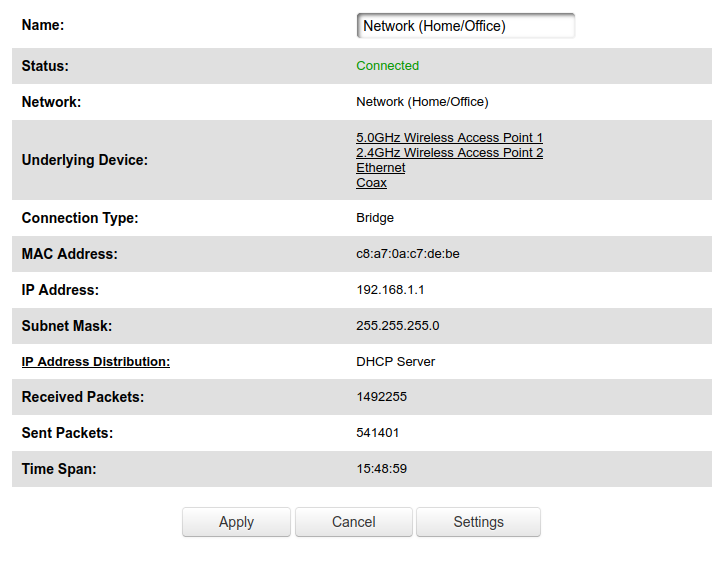
Check the box for bridge mode under the "Bridge" section
If you set up another router and it detects that the ISP modem/router is still active, it will use the 10.0.0.0/16 network rather than the 192.168.0.0/24 network
Configure IP Allocation
Login to router administration interface
Select "Advanced" on the top bar, then select "Yes"
Under "Routing", select "IP Address Distribution"

Select "Connection List" on the bottom

Edit a specific host's IP allocation
Grafana Alloy
How to get WAL stats for alloy:
alloy tools prometheus.remote_write wal-stats /var/lib/private/alloy/data-alloy/prometheus.remote_write.default/wal
Intel NIC Configuration
Wireless Configuration
# iwlwifi.conf
# Enable antenna aggregation
options iwlwifi 11n_disable=8
lm-sensors
| Label |
Value |
| CPUTIN |
Motherboard's CPU temp sensor |
| SYSTIN |
Motherboard temp sensor |
| AUXTIN |
Aux temp sensors, usually for PSU |
LUKS
https://wiki.archlinux.org/title/Dm-crypt/Specialties#Disable_workqueue_for_increased_solid_state_drive_(SSD)_performance
Podman
Accessing host ports from inside a container
virtualisation = {
  oci-containers.containers = {
    example-container = {
      image = "example-image";
      extraOptions = [ "--network=slirp4netns:allow_host_loopback=true" ];
      };
    };
  };
};
From the container's config, reference host.containers.internal:PORT
traefik
Docker Label Configuration
Base Labels
This is the minimum set of labels you need to expose a container to traefik:
labels:
	traefik.enable: true
	traefik.http.routers.<service_name>.entrypoints: <ep1>, <ep2>
	traefik.http.routers.<service_name>.rule: Host(`host1`, `host2`)
	traefik.http.routers.<service_name>.tls: true
	traefik.http.routers.<service_name>.tls.certresolver: <cert_resolver>
Middleware configuration
To configure a middleware for a particular service, add the following label:
traefik.http.routers.<service_name>.middlewares: middlware@providerAccessing on a non-default port
If a container exposes multiple ports or a non-default port:
traefik.http.services.<service_name>.loadbalancer.server.port: <port_num>Networking
To expose only containers on a certain network to traefik, you must specify the providers.docker.network option as so:
providers:
	docker:
    	endpoint:
        exposedByDefault: false # Require label in docker-compose file for each container
        network: <net_name>
        watch: true
If traefik itself is running in a docker container, you must place it on the same network as the containers you want to expose.
TLS
Basic TLS configuration that enables resolvers for both single-domain and wildcard Let's Encrypt certificates, as well as staging certificates:
# ========== TLS Configuration ==========
tls:
	# Disable TLS version 1.0 and 1.1
    options:
		default:
 			minVersion: VersionTLS12
 			sniStrict: true

	certificatesResolvers:
		staging:
			acme:
				email: "email@email.com"
				storage: /etc/traefik/certs/acme.json
				caServer: "https://acme-staging-v02.api.letsencrypt.org/directory"
				tlsChallenge: {}

		production:
			acme:
				email: "email@email.com"
				storage: /etc/traefik/certs/acme.json
				caServer: "https://acme-v02.api.letsencrypt.org/directory"
				tlsChallenge: {}
Wildcard certificates can only be obtained with the DNS-01 challenge. Therefore a resolver that uses these must have dnsChallenge configured accordingly.
Tailscale
When running traefik in a docker container, ensure that it has access to the tailscale socket to be able to issue TLS certificates through tailscale
Users/Groups
krypton
| User | Group | Type (login/system) | Purpose |
| restic | backup | system | Run the restic-rest-server |
| www-srv | www | system | Run web-accessible services |
| - | timemachine | ||
| traefik | traefik | system |
Run the t |
| syncthing |
|
||
| paperless |
|
||
| docker |
|
||
| users |
|
||
| wheel |
|
oxygen
Bookstack
502 on OIDC logout
Edit /config/nginx/site-confs/default.conf inside the container. On the host, it’s under whatever directory you mapped to /config, so something like ./bookstack/config/nginx/site-confs/default.conf.
Open it and find the PHP block, which in the linuxserver image looks like this:
location ~ \.php$ {
    fastcgi_split_path_info ^(.+\.php)(/.+)$;
    fastcgi_pass 127.0.0.1:9000;
    fastcgi_index index.php;
    include /etc/nginx/fastcgi_params;
}
Add the buffer directives inside it:
location ~ \.php$ {
    fastcgi_split_path_info ^(.+\.php)(/.+)$;
    fastcgi_pass 127.0.0.1:9000;
    fastcgi_index index.php;
    include /etc/nginx/fastcgi_params;

    fastcgi_buffer_size 32k;
    fastcgi_buffers 16 16k;
    fastcgi_busy_buffers_size 32k;
}
Then test and reload without restarting the container:
docker exec bookstack nginx -t && docker exec bookstack nginx -s reload(Replace bookstack with your container name.)
The linuxserver image only creates default.conf on first run and won’t overwrite it on updates, so your edit will persist. If a future image update introduces a new default, it saves it as default.conf.sample next to yours rather than replacing it.
If the error persists after this, check your .env (in /config/www/.env) for SESSION_DRIVER. If it’s set to cookie, switching it to file or database is the other big lever for shrinking headers.